. The Problem
When connecting to a Linux VPS (Debian/Ubuntu) via SSH from a macOS Terminal, the following warning repeatedly appears upon login:
-bash: warning: setlocale: LC_CTYPE: cannot change locale (UTF-8): No such file or directory
-bash: warning: setlocale: LC_CTYPE: cannot change locale (UTF-8): No such file or directory
-bash: warning: setlocale: LC_CTYPE: cannot change locale (UTF-8): No such file or directory
Why it happens:
- The Mac Side: By default, the macOS Terminal application is configured to force local language and character environment settings across the network to any server we connect to. It specifically tries to inject an environment variable called
LC_CTYPE="UTF-8". - The Server Side: Debian expects locale variables to follow a strict standard format that includes both language and region (e.g.,
de_DE.UTF-8oren_US.UTF-8). When macOS sends just"UTF-8", Debian looks for a language pack named exactlyUTF-8. Because it doesn’t exist, the server throws a warning for every interactive shell process it tries to start.
2. The Solution
To fix this, we have to stop macOS from aggressively pushing incomplete locale environment variables through the SSH connection.
Step-by-Step Resolution:
- Disconnect from the remote VPS server.
- Open the macOS Terminal app locally.
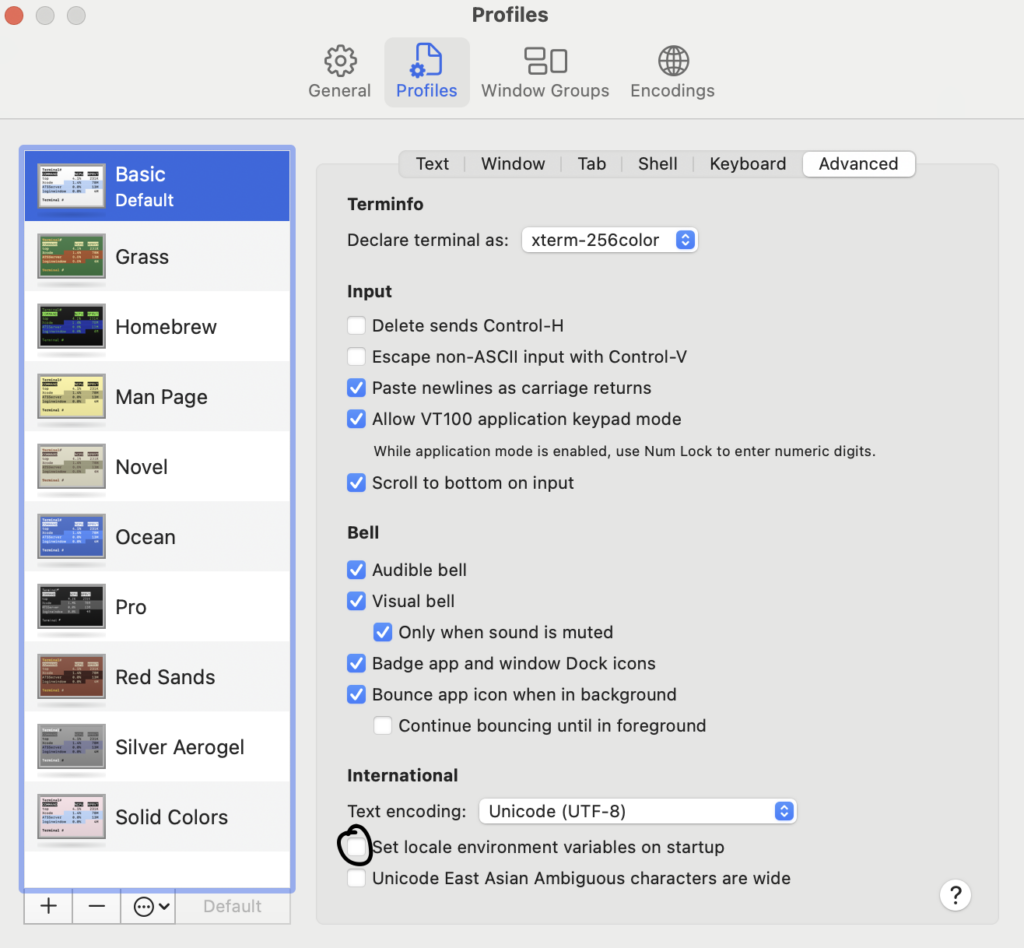
- In the top macOS menu bar, navigate to Terminal > Settings… (or Preferences… on older macOS versions).
- Click on the Profiles tab at the top of the settings window.
- Select the Advanced sub-tab on the far right.
- Locate the checkbox labeled: “Set locale environment variables on startup”.
- Uncheck this box.
- Restart the Terminal application and reconnect to the VPS.
3. The Result
- No More Warnings: The server no longer receives the invalid
UTF-8variable from the Mac, eliminating the startup warnings completely. - Keyboard Layout Intact: The local German keyboard layout (
ä,ö,ü,ß) continues to function perfectly over SSH because keyboard inputs are handled by the terminal emulation layers, independent of the environment variables.
Executed Commands
1. Commands Run on the VPS (Debian Server)
Before adjusting the Mac settings, I verified and updated the server’s supported language packs so it could properly recognise German character mapping. My Macbook has a German keyboard, therefore when I connect over ssh to my VPS, I need to tell my VPS that I am loging in with a German keyboard.
- sudo dpkg-reconfigure locales
Purpose: This opens an interactive menu to install specific language environments (like de_DE.UTF-8 and en_US.UTF-8) directly onto the Debian system operating system.
2. Commands for the Local Machine (Macbook Pro)
While I ultimately fixed the issue using the macOS Terminal GUI settings, the core configuration file that controls how SSH handles these environment variables on Unix-based clients, I also needed to update the same setting on my Macbook.
To edit the global SSH client configuration:
Step-by-Step Resolution:
- Disconnect from the remote VPS server.
- Open the macOS Terminal app locally.
- In the top macOS menu bar, navigate to Terminal > Settings… (or Preferences… on older macOS versions).
- Click on the Profiles tab at the top of the settings window.
- Select the Advanced sub-tab on the far right.
- Locate the checkbox labeled: “Set locale environment variables on startup”.
- Uncheck this box.
- Restart the Terminal application and reconnect to the VPS.